Ben's
Projects
Projects
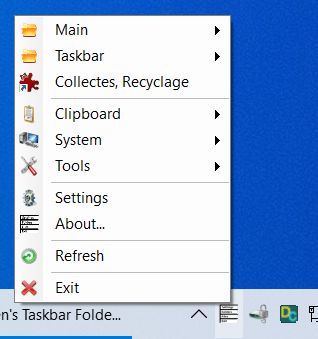
Ben's Taskbar Folder Menu
Quick access menu for the Taskbar. Replaces the one that was available in Windows 10 but was removed in Windows 11. Select a folder (in 'Settings') and its contents will be available in the menu.
Also adds a few useful tools like power options, clipboard text loading and saving and other tools.
Version Info.
Download
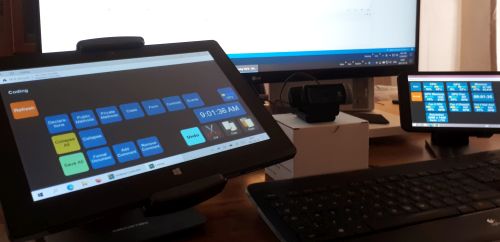
Ben's Desktop Controller
Control your Windows desktop from a device with a touch screen. Launch and send commands to applications or games and monitor your computer's hardware.
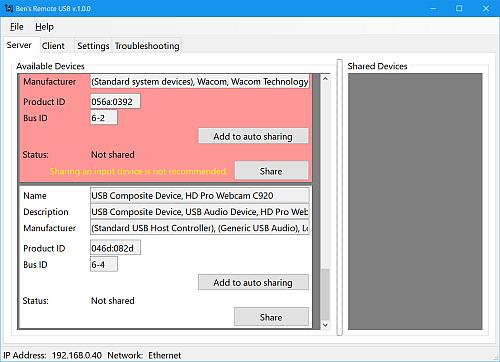
Ben's Remote USB
Use usb devices from a remote computer on your LAN. Similar to VirtualHere and USB over Network.
Version Info.
Download
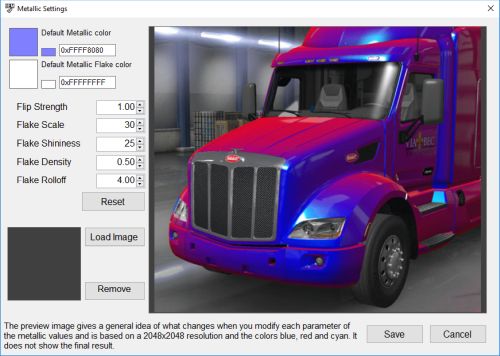
Ben's Easy Modding
Easily create mods for American Truck Simulator, Euro Truck Simulator 2 and Snowrunner.
Local Time: 2026/04/13 20:38:36
© Copyright 2022-2026 B.P.